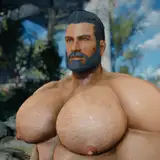
This guide provides instructions on how to install Fallout 76 - Atomic Muscle Male Body.
Enhanced Vanilla Bodies 76: Hard requirement.
If you want exactly the same body / penis/ anus / bulge as shown in screenshots, you can jump directly to the "Installation" section, skipping the "BodySlide" section below.
If you want to customize the body, you need Fallout 4 basegame + BodySlide and Outfit Studio, and then continue with the "BodySlide" section below.
If any step or instruction is unclear, please don’t hesitate to let me know!
1. Install BodySlide and Outfit Studio via Mod Organizer 2 (MO2), and set "BodySlide" as executable if you haven't. I don't use Vortex so I can't provide support to Vortex users unluckily.
2. Download the BodySlide file from Fallout 76 - Atomic Muscle Male Body mod page, and install it as a regular Fallout 4 mod via MO2.
3. Activate the mod installed on the left panel of MO2. Remember to deactivate it when you play Fallout 4 via MO2.
4. Open BodySlide via MO2. If this is your first time using BodySlide, click "Settings" on the bottom right and set "Output Path" to a location as you prefer.

5. Close "Settings". Now type "(AM76) Atomic Muscle" in "Filter Outfits" search bar.
 6. Open the dropdown menu of "Outfit/Body". If you want to use nevernude body, click "(AM76) Atomic Muscle - Nevernude Brief". If you want to use nude body, click "(AM76) Atomic Muscle - Cut" or "(AM76) Atomic Muscle - Uncut". Don't click others.
 7. Click "Preview" at the center bottom of BodySlide, and play with those sliders to create your desired body. Ignore the wrong body textures / outfit textures showing in "Preview".
 8. Click "Save As" and give your own body preset a name. You can save it anywhere but I suggest saving it to the default location, so that you can find it in the "overwrite" folder of MO2.
 9. Now open the dropdown menu of "Preset" and select the preset you just created. If it doesn't appear, restart BodySlide.
 10. Click "Batch Build" on the bottom left, with "Build Morphs" unchecked.
 11. Then it will prompt a new window showing all meshes to be built. Click "Build".

12. If this is your first time, it will ask you to choose one body version. Choose the one you want. Then click "OK".
 13. Find the output "meshes" folder, and continue with the 2. step of the "Installation" section.
There might be other methods for installation but I only provide support to my method. If any step or instruction is unclear, please don’t hesitate to let me know!
1. Download only one file ending with "Meshes" from the Fallout 76 - Atomic Muscle Male Body mod page based on your choice, and unzip it anywhere. You should see a "meshes" folder.
2. Navigate to the folder "SteamLibrary\steamapps\common\Fallout76\Data". The location might vary but anyway you should open the "Data" folder of Fallout 76.
3-1. If you have skipped the "BodySlide" section, copy the "meshes" folder from step 1. into the "Data" folder. In the end, there should be a "meshes" folder inside the "Data" folder. Then proceed with the step 3-3.
3-2. If you have created your own preset in the "BodySlide" section, then copy the output "meshes" folder that you have generated via BodySlide into the "Data" folder. In the end, there should be a "meshes" folder inside the "Data" folder. Then proceed with the step 3-3.
3-3. If you use "Nevernude" version, you also need to download "materials" or "textures" files on the mod page. Unzip them and copy those two folders "materials" and "textures" into the "Data" folder. If you use "Nude" version, ignore those two files.
4. Download "EVB 76 - AIO (Loose files)" this file from Enhanced Vanilla Bodies 76. Unzip it anywhere. Open it and navigate to "Nude\NudeMale\Data\", and you should see "textures" this folder.
5. Navigate again to the folder "SteamLibrary\steamapps\common\Fallout76\Data". Copy the "textures" this folder from step 4. into the "Data" folder of Fallout 76.
6. Now navigate to "Documents\MyGames\Fallout 76" this folder, and open "Falout76Custom.ini". The location might vary.

7. Add ", BakaFile - Textures.ba2, BakaFile - Main.ba2" directly after the last ".ba2" of the section "sResourceArchive2List".
8. Download Baka File Tool and unzip it anywhere you like.
9. Open Baka File Tool and set game to Fallout 76 with correct game path.
10. Go to "Settings" section of Baka File Tool and make sure "Compress Archives" is checked.

11. Back to the "Tool" section of Baka File Tool and click "Refresh Data Folder" and then click "Create Archive".

12. Test in game and enjoy!