www.instagram.com/p/B3hzkSvHZH…
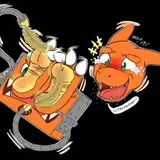
XP-Pen sent me their Artist Display 13.3” Pro model to review, and hold a giveaway! The drawing on the right was drawn on their tablet, and I have a timelapse over on Instagram as well. If you’re interested in the giveaway, feel free to head over to Instagram and:
+ Follow me (@ koyori_n) and XP-Pen (@ xppen)
+ Like the post and leave a comment with what in your daily life inspires you to create art!
+ Winner will be randomly chosen on October 19th, 2019!
I worked with the tablet for a while, and here are my impressions:
Short review:
Pros:
+ Easy set up
+ Very lightweight
+ No additional supplies required
+ Left and right hand support
+ Affordable cost
+ Good colour range
Areas for improvement:
- Pen sensitivity is a bit on the lower end, even on highest software sensitivity settings
- Might encounter an issue with modifier keys (can bind them to the display’s hotkeys to alleviate this issue)
- Colour may not match up with your primary monitor, will require some manual calibration
Long review:
First things first; the tablet comes with everything you need to get started. Tablet, collapsible stand, stylus and stylus holder/case (with extra nibs), cables, power adapter, cleaning cloth, drawing glove, etc. The display also has options for USB power or outlet power. Once you download the drivers for your computer, you’re pretty much set to go. My experience with it has been pretty straightforward—only minor calibration was required for the pen to match up, which was done through the setup program that you install with the drivers. If you’re left-handed like I am, then you can also flip the orientation of the screen here.
My initial impressions while working with the tablet for the first time were overall pretty good; both Photoshop and CLIP STUDIO worked right off the bat. However, I did notice that the pen pressure was lower than what I was used to with other the other graphic tablets I use—you can calibrate this in your software and through the pen driver utility, but I was unable to get it to the same level I was used to. Despite this, I’m sure that if you set up your brushes accordingly for this display (instead of accounting for multiple devices like myself), you can reach a level that you are comfortable with.
While drawing, the tablet was responsive and there was little delay while drawing. The cursor itself lined up with the pen just fine after running the calibration utility, and the strokes reacted to pen pressure decently well (though again, the level of sensitivity was still a bit restricted). A few minutes into my first drawing though, I noticed a bit of an oddity with my keys—it was hard to tell what was going on at first, but I realized that my modifier keys (command, alt, shift, etc.) were not working correctly, and I was unable to use them in tandem with the pen strokes. I also had to press down longer on my keys for them to read when switching between tools, which was a bit odd. However, after some experimentation I realized that binding the modifier keys to the tablet’s built-in hotkeys allowed me to use modifiers at the same time as the pen. While this may not be your preferred method, it’s a fair solution—you may also not encounter this issue, since it might also just be due to my particular setup.
All in all; I think the 13.3” Pro is a pretty decent choice for someone who wants to pick up an affordable display tablet. The features of the tablet are more or less all you need when drawing on a graphics tablet, and it’s also cost friendly for beginners and professionals alike.