Phil here again, with some technical processing talk.
One of the biggest collections in our library that we've been working through is our collection of press CDs from GamePro magazine.
From about 1995–2005, whenever GamePro received digital art or an electronic press kit, they would back it up onto a CD-R so they could reference it later. We were donated these backup CDs, which we've been ripping and adding to our digital library.
For the last week or two, we've been working on getting the next hundred CDs ready to go live in our library. Not only do we need to rip them, but we also need to make sure the files are actually readable. We're dealing with 30-year-old CDs, and there's no guarantee that the files will be readable or present well in our digital archive system.
We've heard that folks want to hear more about our process, so let's walk through an example CD and show you everything that goes into the process!
Today, we're going to look at CD #133, a digital press kit for the 1998 PlayStation game Ninja: Shadow of Darkness.
To rip CDs, we use LG WH14NS40 Blu-ray drives. We have two of them, so if one doesn't work, we'll use the other. To distinguish between the two drives, I gave them names:

We rip them in .bin/.cue format using IsoBuster. We don't need to preserve any sort of low-level disc information for these CDs, which are almost all just files burned on a CD-R, so .bin/.cue is the best format here.
Once we've ripped the CD, we also extract the data using IsoBuster. The great thing about this program is that it can extract Mac-format data to Windows, which comes in handy since Macs were the platform of choice for art/magazine production.

We always preserve the original, unaltered disc images (which we're also now making downloadable directly from the digital archive!). But we want to make sure the public-facing access copies of the files in our system are viewable as well. Our digital archive backend, Preservica, does a good job working with most common filetypes, but for many others, especially obsolete specialty media formats, we need to manually convert or massage the files ahead of time.
Typically, I start by looking at every file on the CD and seeing what formats we're dealing with.
But before we can do anything with this CD, we're hit with a rude reminder of being a computer user in the 90s.

Yep, this CD has a virus on it. Microsoft Word macro viruses were alarmingly common in the Windows 95 era, and it's not unusual to find them in .doc files like press releases. Windows Defender is adept at cleaning out macro viruses, so we can sanitize this file without losing any (non-virus) data. We'll make a note of this in the catalog record so that anyone who downloads this disc image is aware of what's on there.
Anyway, let's see what's on this CD...

Like most of these CDs, it's mostly images in many different formats. We've got .TGA, .TIF., .PCX, .BMP, .PSD, and .JPG.
Preservica can accept a large number of image formats, some more successfully than others. For the sake of the access copies, though, we've going to convert all these to .png and upscale the smaller images (nearest-neighbor style), Preservica does a mild amount of compression when presenting images, which is noticeable on low-res images like pixel art. By blowing up the images, we have more control over how they're presented.
For the most part, we've automated this process. We use IrfanView, which is an freeware tool that has powerful batch-processing commands for working with pretty much any image format under the sun.

Preservica removes file extensions from the visible names of files, so we'll rename these in a way that makes the original format visible (eg., WatrNin.psd becomes WaterNin.psd.png).
Lucky for us, the set of images on this CD is easy to process and can be handled with Irfanview. But I want to talk about the most annoying edge cases we have to deal with.
One downside of IrfanView is that it doesn't handle images in CMYK format very well. You're probably most familiar with images in RGB format, which use red, green, and blue as the basis for all their colors. CMYK images use cyan, magenta, yellow, and black, a combination of colors used in commercial printing.
A lot of the assets that GamePro received were meant for print, so they're in CMYK format. Unfortunately, Irfanview struggles when converting that colorspace to RGB, because it was never designed with printing in mind.
As an example, here's the box art for Banjo-Kazooie in CMYK, as seen in Irfanview:

Yeugh! That's all wrong. The saturation is way too high. In particular, the color green is blown out. Look at the neon N64 logo, and look at the slightly puke-y hue of Kazooie's beak. Grooooss.
It's still fine for the purposes of public browsing. And keep in mind, we've made the original unaltered disc images available if people really want to get the source file and do a better conversion themselves. But we can do better.
I'm still refining this script, but I've written a good-enough-for-now Bash script that uses a separate program called ImageMagick. This one is more powerful than Irfanview but less user-friendly (it's command-line only), so we use it as a backup tool for dealing with tougher cases like this.

Right now, this script reads any .tif as if it's a CMYK image; the next step would be to write it so it identifies which ones are actually CMYK format before converting.
And voila! All better.

Irfanview can work with Adobe-format files using an add-on called Ghostscript. It works well, but isn't perfect. There's two big issues I've run into:
1) Illustrator files can get complicated. They can use fonts or external assets in a way that doesn't play nicely with Ghostscript. This tends to happen if, for example, a publisher dumped all their digital box art assets into a folder without polishing or flattening them.
2) Files created with the earliest versions of Photoshop are unreadable with Ghostscript:

In these cases, we have to break out the big guns...

Yep, this is what it has come to. If you absolutely need to be able to read an old file, the best way... is to use an old program. It's an inefficient way to do things, but sometimes this is the best option! Even old Photoshop handles CMYK better than Irfanview does, so sometimes I'll also use this to convert CMYK format images that need a little TLC.
You might be wondering: If Photoshop works so well, why not just use it for everything? Can't you just get modern Photoshop and process files in batch? This kind of question comes up constantly internally when we're deciding what tools to use.
There are specific things I like about Irfanview, particularly how fast it's able to batch-process so many different image types. But the most important thing for me is that I want to make sure our workflow is sustainable. The reason I love using Irfanview—and, to a lesser extent, ImageMagick—is that they're free and/or open-source tools. I am not a hardcore stickler on only using FOSS software (we use IsoBuster, after all), but I don't want us to lock ourselves into a proprietary system if we can help it. We need to have local control of our tools if possible, and we need command line-level flexibility for all the complicated tasks we throw at them. Irfanview is the best option that covers all of our needs.
The other reason I don't use Photoshop is because I don't want to pay rent to Adobe.
Speaking of proprietary formats! I hate Macintosh PICT images.
During the days of classic Mac OS, Apple's graphics API QuickDraw had its own picture format, .pict (or .pct). It was an unholy fusion of raster and vector image content, kind of like a PDF, but more like an image than a document.
The PICT format has been deprecated, but before that, the best way to view .pict images in Windows was to use QuickTime. So unfortunately... we have to use QuickTime too.

Luckily, for now, QuickTime 7 Pro still works on Windows 11. Not only that, but the 32-bit version of Irfanview can actually use the QuickTime drivers too! After toggling the option that tells Irfanview to use QuickTime to read PICT files, I've been able to build PICTs into my batch processing workflow like they were any other ordinary format.
As long as there's a 32-bit release of Irfanview, and as long as Windows continues supporting 32-bit executables, we can make this work.
Where were we? Right, Ninja: Shadow of Darkness. The majority of files on this disc were images, but now let's look at the remaining files.

As we briefly acknowledged during the "is my computer infected with viruses" portion of this post, we've got a few .doc files on this CD. Luckily, we don't have to do anything with these! Preservica is running a pared-down version of LibreOffice on its servers, which converts DOCs to PDFs on-demand when the files are requested.
For Excel spreadsheets, we'll need to do a little massaging to make sure the spreadsheets display correctly. Right now Preservica doesn't have a dedicated tool for displaying spreadsheets, so it converts them to PDFs as well. To make sure all the content displays correctly in PDF form, we need to make some adjustments to page setup. But apart from minor fixes like that, documents are documents. Preservica's toolset has them covered. Not much to worry about here!
However, I did clean up these directories by getting rid of the temp files, like "~$K contact info.doc". We do this for any temporary or cache files, like Desktop DB, or my personal favorite, pspbrwse.jbf, which contains thumbnails for browsing with Paint Shop Pro.
We have one more type of files to look at: videos.

This is another format we can automate! For videos, we use ffmpeg, one of the modern wonders of the world. ffmpeg is an open-source application that works with pretty much every video codec ever devised by man or beast. We can just throw ffmpeg at this folder and be done.
I have a pre-written script for "Mass conversion of historic video." We convert the video to an x264 mp4, scaled up nearest-neighbor to improve the clarity of low-resolution videos in Preservica's video player.

Working with the Cyan collection made me more comfortable doing batch processing with ffmpeg. Now I can apply that skill to other projects, like these CDs!
There's a few formats that we currently don't have a sustainable, scalable way to work with. GamePro staff sometimes saved their art in a format for QuarkXpress, an office publishing program that hasn't been widely used since the 20th century. In these cases, we just make a note in the catalog record that we couldn't do anything with these files. You're welcome to play around with them if you want to try, but we can't provide support for them.
Because we're exporting Mac-formatted files to Windows, we also lose any files that exist as resource forks without an accompanying data fork. There's no reason you should have to know what that means, so let's just sum it up as: we don't upload font files.
When we're working with private materials, we'll always make sure to redact personally identifying information. However, since these CDs contain material that was meant for public consumption, that's something we haven't had to worry about yet. Nobody seems to have accidentally copied their bank account information onto a CD yet. Just viruses.
Before we catalog the file and make it live, we also digitize and document any accompanying materials came with with the disc. Most CDs in the GamePro collection come with a cover slip, so we scan that, along with the disc itself. We haven't done this for CD #133 yet, so instead, here's an example from the last set of CDs we did.

If you've played around with our digital archive, you might've noticed that the individual files on these CDs don't have metadata like dates or checksums. In order to provide this in bulk, we also generate a manifest file that goes with each CD, using a still-in-development tool from the team at Hidden Palace called Curator.
Lots of cool stuff! For one thing, the developers included a screenshot of their dev environment, using a proprietary tool called NINJA-EDIT:

There's hand-drawn concept art:

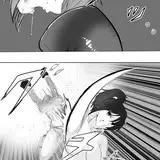
And there was also this totally rad marketing art of the ninja from Ninja kicking some kind of demon monster in the face:

And since I mentioned video conversion, here's "Ninja Demo.avi", a sizzle reel showing gameplay and cutscenes. I don't think I can embed videos after the fold in Patreon, so I'll just link to it:
https://www.youtube.com/watch?v=UZ_9eVuPmFA (FYI, the audio was out of sync in the original file)
We're still running through all these steps on CDs #101–200, but once they're done, we'll upload them to our digital archive. (Current timeline is hopefully late September or early October.)
We hope this has been a fun look at what goes into making these discs accessible and viewable, and also why you should always keep a copy of QuickTime on your computer.
PigDan
2025-08-28 06:22:30 +0000 UTCThe Video Game History Foundation
2025-08-26 18:02:07 +0000 UTCAs Events Warrant
2025-08-26 17:39:26 +0000 UTC