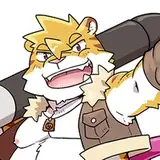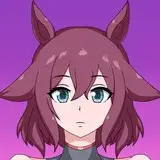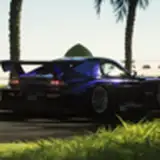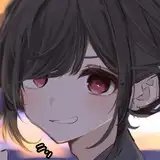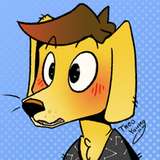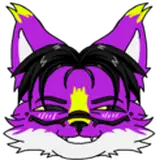
Deuzear is a 4 ears Fluffy Specie avatar base for VRChat
• Snoot and Ears customisation
• Eye and Mouth tracking compatible
• Clothing and Bodytype
• Custom made Hypnotic eyes shader
• In Game controls
• MMD Compatible
• Share or gift any of the files to anyone.
• Claim the avatar as your own.
• take any part, file, shader, menu off the avatar to use anywhere else
• Upload any of the files on a Google Drive or any Online Hosting services.
YOU CAN:
• Credit me when you can
• Do reskin and modification on the avatar for a client as long as both of you bought the avatar in order to rightfully use it
• Upload public version of the avatar as long as it is accessible for everyone on a pedestal in a public world
This asset is provided as is, without warranty of any kind
Purchasing this asset grants you a personnal use liscence only.
Due to the nature of the asset, i do not offer any form of refunds
_______________________________________________________________
I am NOT responsible of any action taken against you if you break the VRCHAT TOS.
feel free to contact me on discord for any question: Abiboi#5034

Using VRChat Creator companion (VCC) , Create a new Unity Project.
You need to have VRCFury imported (Download it here )
For Face Tracking user : You'll need VRCFT - Jerry's Templates ( Download it here )
Import Gesture Manager
Your project packages list should look like this :


Now your project is ready, you can Download and import the following package :

Now that you imported the Unity package in your project, Navigate the Assets and Open "Deuzear 2.0" Unity Scene.

You should be greeted with something like this :


Let's Take "Fluff_Back_Low" as an exemple


Deuzear 2.0 now use VRCFury to make it's customization and Optimization simplier
All the Modules are located in the Modular Deuzear Folder. You can Drag and drop whatever Modules you want to use inside "VRCFury Modular Deuzear" on the avatar. You can also remove ( From the avatar of course ) Any modules you want if you don't plan on using it's feature ( This is usefull to save on parameters size ). For clothes Make sure to Also Delete or Change the Tag ( like explained above) of the Clothes you don't use. Clothes mesh are located under " Clothigns" On the avatar.


Deuzear Face Tracking now use Adjerry's Face Tracking Template, If you followed the install instruction you have everything you need to add Face Tracking to your Deuzear !
To do that simply Navigate the Project folder to Find " VRCFury - Face Tracking - UE Blendshapes "

Drag and drop the Prefab onto "VRCFury Modular Deuzear"

Done !

Too many Ears on your Zear ? We got you covered. You can easily swap to Two ears Mod in a few Clicks !
In the Hierarchy Windows, Locate "Two_Ears_Mod" On the Deuzear Avatar ( it's at the top )

Select it and change its Tag to "Untagged"

During Export the botoom ears will be replaced with Fluff and the Body Material will be swapped to accomodate the change.
IF BUILD FAIL DURING UPLOAD : PUT TWO EARS BODY MATERIAL ON THE BODY AND CHECK VRC UPLOAD WINDOW, YOU MOST LIKELY HAVE SOME TEXTURE MIPMAPS/COMPRESSION TO FIX, JUST PRESS "AUTOFIX" AND PUT THE ORIGINAL BODY MATERIAL BACK ON THE BODY MESH
Note : The Body Material used is now " Body_Bottom_Ears_Off" it's located in Assets/Textures/Grey Two_Ears

Hand Beans Share the same Uv As the the Pawpads by default.
However, i made a secondary UV just in case where the hand beans are separate from the pawpads. If your shader support multiple UV slots you can change that so the beans uses their own texture.
Hand Beans separate UV follow the same pattern as the pawpads, the UV was simply slide and put on a empty spot of the Body UV: Here's a mask to help you make your modifications :


Clothings are on the Avatar by default. Each garment is composed of a Mesh and an associated VRCFury Prefab.
Mesh Are located on the Avatar under "Clothings".

The associated VRCFury Prefab are located under VRCFury Modular Deuzear

In the case you'd want to add back the Clothes included with the Deuzear, the FBX Are located in the Assets/FBX.

Each FBX contains the same armature as the avatar and ( only ) the clothing mesh.
They are added on the avatar using a custom script made by Ikeiwa ( Ikeiwa's Gumroad page ), Included in the Unity Package
It works as Follow:
- Drag and Drop the Clothing FBX in the scene Hierarchy
-Right Click and Unpack the Clothing FBX prefab
- Go to Window/Update Skinned Mesh Bones

-It will open the Skin Update Window

On "Main Body" Drag and Drop Deuzear Body Mesh
On Accessory Drag and Drop Clothing Mesh ( don't forget to unpack ! )
- Hit Update Skinned Mesh Renderer
- The clothing is now linked to the Deuzear Armature, you can Drag and Drop it in "Clothings"
-DONE !

Hollowzear Scene and its associated files are Located in Assets/Addons/Halloween


I Made the Deuzear Using Blender 3.6.9 ( version not mandatory, sayin just in case )
Deuzear.FBX is exported to Unity, It contains the following :

I Export from Blender Using the following Settings ( Make sure to Select all the mesh+Armature before export)


Grey Deuzear Texture
White Deuzear Texture
HollowZear
UwU Stuff
Deuzear's Hoodie and Warmers are in separate Substance Files.
Warmers and Hoodie Materials is "Body_2" ( the same one used for Tail_Fluffy)
Once you're done texturing the Hoodie and Warmers export the textures and use the Provided .psd to merge it all